不管是电脑还是手机,都需要有一个日常必备的功能,时间这个功能是日常都必备的,在IOS开发中要怎么使用这些功能呢?下面就让中国E盟技术频道小编带你简单介绍iOS中控件的使用吧。
一、Date Picker控件
1.简单介绍:
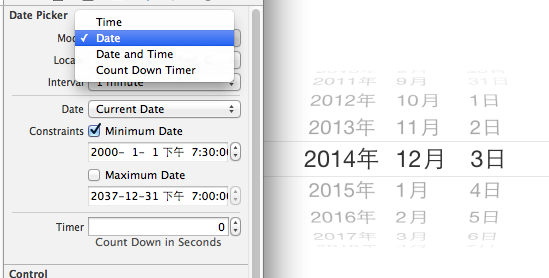
Date Picker显示时间的控件
有默认宽高,不用设置数据源和代理
如何改成中文的?
(1)查看当前系统是否为中文的,把模拟器改成是中文的
(2)属性,locale选择地区
如果默认显示不符合需求。时间有四种模式可以设置,在model中进行设置
时间可以自定义(custom)。
设置最小时间和最大时间,超过就会自动回到最小时间。
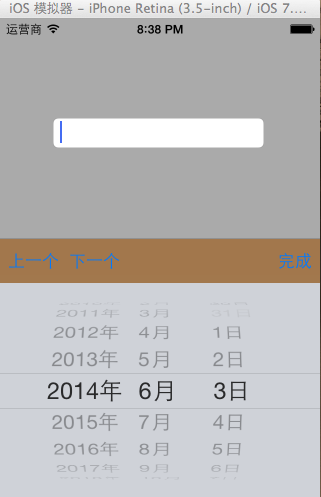
最大的用途在于自定义键盘:弹出一个日期选择器出来,示例代码如下:
2.示例代码
//
// YYViewController.m
// datepicker
//
// Created by apple on 14-6-3.
// Copyright (c) 2014年 itcase. All rights reserved.
//
#import "YYViewController.h"
@interface YYViewController ()
/**
* 文本输入框
*/
@property (strong, nonatomic) IBOutlet UITextField *textfield;
@end
@implementation YYViewController
- (void)viewDidLoad
{
[super viewDidLoad];
//1
//添加一个时间选择器
UIDatePicker *date=[[UIDatePicker alloc]init];
/**
* 设置只显示中文
*/
[date setLocale:[NSLocale localeWithLocaleIdentifier:@"zh-CN"]];
/**
* 设置只显示日期
*/
date.datePickerMode=UIDatePickerModeDate;
// [self.view addSubview:date];
//当光标移动到文本框的时候,召唤时间选择器
self.textfield.inputView=date;
//2
//创建工具条
UIToolbar *toolbar=[[UIToolbar alloc]init];
//设置工具条的颜色
toolbar.barTintColor=[UIColor brownColor];
//设置工具条的frame
toolbar.frame=CGRectMake(0, 0, 320, 44);
//给工具条添加按钮
UIBarButtonItem *item0=[[UIBarButtonItem alloc]initWithTitle:@"上一个" style:UIBarButtonItemStylePlain target:self action:@selector(click) ];
UIBarButtonItem *item1=[[UIBarButtonItem alloc]initWithTitle:@"下一个" style:UIBarButtonItemStylePlain target:self action:@selector(click)];
UIBarButtonItem *item2=[[UIBarButtonItem alloc]initWithBarButtonSystemItem:UIBarButtonSystemItemFlexibleSpace target:nil action:nil];
UIBarButtonItem *item3=[[UIBarButtonItem alloc]initWithTitle:@"完成" style:UIBarButtonItemStylePlain target:self action:@selector(click)];
toolbar.items = @[item0, item1, item2, item3];
//设置文本输入框键盘的辅助视图
self.textfield.inputAccessoryView=toolbar;
}
-(void)click
{
NSLog(@"toolbar");
}
@end
实现效果:
二、UITool Bar
在上面可以添加子控件TOOLBAR中只能添加UIBarButtonItem子控件,其他子控件会被包装秤这种类型的
上面的控件依次排放(空格————)
有样式,可以指定样式(可拉伸的),一般用来做工具栏。
使用toolbar做点菜的头部标题
如何让点菜系统居中?在ios6中是正的,在ios7中是歪的
在自定义键盘上加上一个工具栏。
数组里什么顺序放的,就按照什么顺序显示
toolbar.items = @[item0, item1, item2, item3];
//设置文本输入框键盘的辅助视图
self.textfield.inputAccessoryView=toolbar;
好,让我们仔细来看一下UITool Bar的用法。
1.首先,我们看一下UIBbarButtonItem有哪些初始化方法,这也可以看出,它可以被定义为什么东东,然后加到UIToolBar上面去。
根据SDK的文档,我们可以发现UIBarButtonItem有如下几种初始化的方法:
-initWithTitle(添加button用这个)
-initWithImage
-initWithBarButtonSystemItem(添加系统自定义的button,形状跟大小都已经固定了)下面链接里面有按钮图片样式
https://developer.apple.com/library/ios/#documentation/UIKit/Reference/UIBarButtonItem_Class/Reference/Reference.html
-initWithCustomView(添加除了button以外的View)
第4种方法就是我们添加各种作料的接口,所以今天的主角其它也是它。
2.在UIToolBar上面添加Title
UIToolbar *myToolBar = [[UIToolbar alloc] initWithFrame:
CGRectMake(0.0f, 0.0f, 320.0f, 44.0f)];
NSMutableArray *myToolBarItems = [NSMutableArray array];
[myToolBarItems addObject:[[[UIBarButtonItem alloc]
initWithTitle:@"myTile"
style:UIBarButtonItemStylePlain
target:self
action:@selector(action)] autorelease]];
[myToolBar setItems:myToolBarItems animated:YES];
[myToolBar release];
[myToolBarItems];
setItems传入值或者说items是一个对象数组。
3.在UIToolBar上面添加image
[myToolBarItems addObject:[[[UIBarButtonItem alloc]
initWithImage:[UIImage imageNamed:@"myImage.png"]
style:UIBarButtonItemStylePlain
target:self
action:@selector(action)]];
4.在UIToolBar上面添加SystemItem
[myToolBarItems addObject:[[[UIBarButtonItem alloc]
initWithBarButtonSystemItem:UIBarButtonSystemItemPlay
target:self
action:@selector(action)] autorelease]];
Note:
initWithBarButtonSystemItem初始化:
- (id)initWithBarButtonSystemItem:(UIBarButtonSystemItem)systemItem target:(id)target action:(SEL)action
Defines system defaults for commonly used items.
typedef enum {
UIBarButtonSystemItemDone,
UIBarButtonSystemItemCancel,
UIBarButtonSystemItemEdit,
UIBarButtonSystemItemSave,
UIBarButtonSystemItemAdd,
UIBarButtonSystemItemFlexibleSpace,
UIBarButtonSystemItemFixedSpace,
UIBarButtonSystemItemCompose,
UIBarButtonSystemItemReply,
UIBarButtonSystemItemAction,
UIBarButtonSystemItemOrganize,
UIBarButtonSystemItemBookmarks,
UIBarButtonSystemItemSearch,
UIBarButtonSystemItemRefresh,
UIBarButtonSystemItemStop,
UIBarButtonSystemItemCamera,
UIBarButtonSystemItemTrash,
UIBarButtonSystemItemPlay,
UIBarButtonSystemItemPause,
UIBarButtonSystemItemRewind,
UIBarButtonSystemItemFastForward,
UIBarButtonSystemItemUndo, // iPhoneOS 3.0
UIBarButtonSystemItemRedo, // iPhoneOS 3.0
} UIBarButtonSystemItem;
5.在UIToolBar上面添加其它各种控件,最自由意义,最有意思的,我把它放在最后来讲。我们使用initWithCustomView来完成,
这里需要看一下initWithCustomView的定义:
- (id)initWithCustomView:(UIView *)customView
可以看出,它的参数是一个VIEW,所以我们给它的配料要正确哦才行哦,否则,你就等着时间DIDADIDA的流失吧.
A>加一个开关switch:
[myToolBarItems addObject:[[[UIBarButtonItem alloc]
initWithCustomView:[[[UISwitch alloc] init] autorelease]]
autorelease]];
B>加一个按钮UIBarButtonItem
UIBarButtonItem *myButton = [[[UIBarButtonItem alloc]
initWithTitle:@"myButton"
style:UIBarButtonItemStyleBordered
target:self
action:@selector(action)]autorelease];
get1Button.width = 50;
[myToolBarItems addObject:myButton];
C>加一个文本Label
view plaincopy to clipboardprint?
UILabel *myLabel = [[UILabel alloc] initWithFrame:CGRectMake(40.0f, 20.0f, 45.0f, 10.0f)];
myLabel.font=[UIFont systemFontOfSize:10];
//myLabel.backgroundColor = [UIColor clearColor];
//myLabel.textAlignment=UITextAlignmentCenter;
UIBarButtonItem *myButtonItem = [[UIBarButtonItem alloc]initWithCustomView:myLabel];
[myToolBarItems addObject: myButtonItem];
[mylabel release];
[myButtonItem release];
D>加一个进度条UIProgressView
UIProgressView *myProgress = [[UIProgressView alloc] initWithFrame:CGRectMake(65.0f, 20.0f, 90.0f, 10.0f)];
UIBarButtonItem *myButtonItem = [[UIBarButtonItem alloc]initWithCustomView:myProgress];
[myToolBarItems addObject: myButtonItem];
[myProgress release];
[myButtonItem release];
可以加使用initWithCustomView制作各种button,这里就不在这里一个一个在加了。我想你应该也已经掌握了如何添加各种buttonItem的方法了。
上文是简单介绍iOS中控件的使用的全部内容,大家了解了多少呢?感兴趣的朋友可以继续关注中国E盟技术频道,和小编一起学习进步吧!